22.12.11

extreme networks >>> forgot password ??

ExtremeWare
Copyright (C) 2000-2002 by Extreme Networks
===============================================

Version 6.2.2 (Build 156) By Release_Master on 02/13/04 18:33:39
System Serial Number: 0332R00525
Memory Size: 134217728 (128MB)
login: admin
password:

Press the key at any time for completions.
Don't forget to save your configuration changes.
* Summit48si:1 #

forgot your password ??
access bootrom reboot the switch and press the space bar before the
switch load the image.

................--------==========================

20.12.11

Cisco Configuration Professional


Q. How do I use Cisco Configuration Professional with an integrated services router that does not have a factory default configuration?

A. Steps to run Cisco Configuration Professional on a Cisco router with a non-factory default configuration follow:

Step 1. Connect to your router using Telnet or SSH or through the console.

Enter the global configuration mode using the command:

Router(config)#enable

Step 2. Enable the router HTTP or HTTPS server using the following Cisco IOS Software commands.

If HTTP and HTTPS are enabled and configured to use nonstandard port numbers, you can skip this step and simply use the port number already configured.

Router(config)# ip http server

Router(config)# ip http secure-server

Router(config)# ip http authentication local

Note: HTTPS is enabled only for cryptography-enabled Cisco IOS Software images.

Step 3. Create a user with privilege level 15.

Router(config)# username privilege 15 password 0

Note: Replace and with the username and password that you want to configure.

Step 4. Configure SSH and Telnet for local login and privilege level 15:

Router(config)# line vty 0 4

Router(config-line)# privilege level 15

Router(config-line)# login local

Router(config-line)# transport input telnet

Router(config-line)# transport input telnet ssh

Router(config-line)# exit

Step 5. (Optional) Enable local logging to support the log monitoring function:

16.12.11

summit 200 sw-24-200

Configuring VLANs on the Switch

This section describes the commands associated with setting up VLANs on the switch. Configuring a
VLAN involves the following steps:
1 Create and name the VLAN.
2 Assign an IP address and mask (if applicable) to the VLAN, if needed.
NOTE
Each IP address and mask assigned to a VLAN must represent a unique IP subnet. You cannot
configure the same IP subnet on different VLANs.
3 Assign a VLANid, if any ports in this VLAN will use a tag.
4 Assign one or more ports to the VLAN.
As you add each port to the VLAN, decide if the port will use an 802.1Q tag.
VLAN Configuration Commands
Table 28 describes the commands used to configure a VLAN.
Table 28: VLAN Configuration Commands
Command Description
config vlan add port {tagged
| untagged} {nobroadcast}
Adds one or more ports to a VLAN. You can
specify tagged port(s), untagged port(s).
Specify nobroadcast to prevent the switch
from forwarding broadcast, multicast, and
unknown unicast traffic. By default, ports are
untagged.
config vlan delete port
{tagged | untagged} {nobroadcast}
Deletes one or more ports from a VLAN.
config vlan ipaddress
{}
Assigns an IP address and an optional mask to
the VLAN.
config vlan tag Assigns a numerical VLANid. The valid range
is from 2 to 4094 (1 is used by the default
VLAN).
92 Summit 200 Series Switch Installation and User Guide
Virtual LANs (VLANs)
VLAN Configuration Examples
The following Summit 200 series switch example creates a tag-based VLAN named video. It assigns the
VLANid 1000. Ports 4 through 8 are added as tagged ports to the VLAN.
create vlan video
config video tag 1000
config video add port 4-8 tagged
The following Summit 200 series switch example creates a VLAN named sales, with the VLANid 120.
The VLAN uses both tagged and untagged ports. Ports 1 through 3 are tagged, and ports 4 and 7 are
untagged. Note that when not explicitly specified, ports are added as untagged.


create vlan sales
config sales tag 120
config sales add port 1-3 tagged
config sales add port 4,7

Displaying VLAN Settings
To display VLAN settings, use the following command:
show vlan {} {detail}
The show command displays summary information about each VLAN, which includes:
• Name
• VLANid
• How the VLAN was created
• IP address
• STPD information
• QoS profile information
• Ports assigned
• Tagged/untagged status for each port
• How the ports were added to the VLAN
• Number of VLANs configured on the switch
Use the detail option to display the detailed format.


http://www.google.com/url?sa=t&rct=j&q=&esrc=s&source=web&cd=1&ved=0CCAQFjAA&url=http%3A%2F%2Fextremenetworks.com%2Fdoc.aspx%3Fid%3D350&ei=gMzqTtfUFIWgiQfJ_oSVBw&usg=AFQjCNE5fRq9PQYS2Iro0-BBDMVhmuuq1w 

21.11.11

Vlan Ubuntu

802.1q VLAN HOWTO

Doing 802.1q trunking to an Ethernet switch is really easy. I describe two methods - a text only one for servers, and a GUI one for desktops.

The VLAN number that an interface uses always gets appended to the physical interface after a dot, so for instance an interface eth0 using VLAN number 99 would be called eth0.99. The instructions below all assume you want to connect to vlan 99 - change the number as required.

Server console method
Install the vlan package:
Code:
sudo apt-get install vlan
Load the 8021q kernel module:
Code:
sudo modprobe 8021q
Ensure that this module gets loaded after a reboot by adding to /etc/modules:
Code:
sudo  sh -c 'grep -q 8021q /etc/modules || echo 8021q >> /etc/modules'
Configure the interface by editing /etc/network/interfaces:
Code:
sudo nano /etc/network/interfaces
and adding a stanza like this:
Code:
auto eth0.99
iface eth0.99 inet static
address 192.168.99.1
netmask 255.255.255.0
Then bring the interface up:
Code:
sudo ifup eth0.99
Desktop GUI method
Install the vlan package using Synaptic: System->Administration->Synaptic Package Manager
and search for and install the package 8021q.

The next bit has to be done from the command line.
Load the 8021q kernel module:
Code:
sudo modprobe 8021q
Ensure that this module gets loaded after a reboot by adding to /etc/modules:
Code:
sudo  sh -c 'grep -q 8021q /etc/modules || echo 8021q >> /etc/modules'
Now we have to create a low-level interface that the network manager can see:
Code:
vconfig add eth0 99
Now we can find eth0.99 in the GUI System->Administration0>Network and configure it how we want.

sumber : http://ubuntuforums.org/showthread.php?t=703387

27.5.10

Using a dynamic dns name for a VPN server

The short of it

I’ve had a few times where I’ve wanted to make a secure tunnel between 2 locations but have only had connections with dynamic IP addresses to work with.
Sure it’s easy enough to setup a dynamic dns script for each router, but how about getting one to connect back to the other on its new IP address?
This little script can be used for just that.
:local "vpn-interface-name" "pptp-interface"
:local "vpn-dns-name" "your_dynamic_address"
:local "new-vpn-ip" [:resolve $"vpn-dns-name"]
:local "current-vpn-ip" [/interface pptp-client get $"vpn-interface-name" connect-to]
:if ($"current-vpn-ip" != $"new-vpn-ip") do={ /interface pptp-client set [find name=$"vpn-interface-name"] connect-to=$"new-vpn-ip"}

How it works

Firstly you need to
1. Create this as a new script, name it and setup a scheduler entry for how often you want it to run. I find 10 minutes works fine for me.
2. Change the variables in the script to suit (your_dynamic_address = the dns name for the remote router, pptp-interface = your pptp client interface name)

Thoughts

This sort of script works for more than just a pptp connection.
The same idea can be applied to EoIP tunnels, IPSec tunnels, etc etc.
The script will then check if the current IP for the dns name matches up with the IP you have set on the pptp client interface.
If it does match the script stops without doing anything (leaving the pptp connection intact)
If it does not match the script will update the interface to connect to the new IP address.

5.1.10

resetting pass ubuntu


Pernahkah kita lupa password kita di ubuntu ? lalu apa yang akan kita lakukan bila kita lupa password kita di Ubuntu, apakah kita akan Install ulang mesin kita ?? sayang rasanya bila Ubuntu di mesin kita yang telah kita customize sedemikian rupa agar cantik di depan mata harus di Install ulang dan kembali ke kondisi standart hanya karena kita lupa password. Untuk teman-teman yang pernah mengalami hal serupa yaitu lupa password, jangan buru-buru untuk menginstall ulang mesin yang kita miliki karena mungkin kita masih bisa untuk mengakalinya.


Booting Ubuntu kita, dan pada saat masuk ke GRUB tekanlah tombol ESC utuk menampilkan detail menu. Pilih dan sorot kernel ubuntu kita dan tekan tombol E untuk mengeditnya. Pada bagian akhir kernel ketikkan perintah “init=/bin/bash” atau “init=path/to/shell” (ganti kata path/to/shell dengan lokasi dimana shell anda berada) untuk dapat langsung masuk ke shell tanpa ada perintah untuk memasukkan password (karena Ubuntu dan Debian Family biasanya akan tetap menanyakan password walaupun kita telah masuk ke mode single user).Setelah setelah itu tekan tombol ‘B’ untuk booting kernel dengan opsi yang telah kita tentukan yaitu “init=/bin/bash”


Setelah berada di Shell,bukan berarti kita langsung dapat mengganti password kita yang lupa, karena pada dasarnya mengganti password adalah merubah file /etc/shadow. Dan pada saat kita boot kernel, kita termount ke sistem dengan mode (ro) Read Only. Jadi sebelum kita dapat mengganti password kita, kita perlu untuk me-remount system kita (khususnya / ) dengan opsi rw agar dapat di baca (read) dan tulis (write) /etc/shadow


caranya, dari shell kita ketikkan :

#mount / -o remount, rw

#mount /usr -o remount, rw
setelah itu ketikkan : #passwd


New UNIX password:******* (masukkan password yang baru)
Retype new UNIX password: ******* 
passwd: password updated successfully
dan akhiri dengan mengetikkan perintah:
#mount / -o remount, ro

#mount /usr -o remount, ro

#sync
(catatan: sync digunakan untuk mem-flush buffer dari filesystem sebelum direboot) Setelah itu reboot system anda dengan perintah : #reboot


Insya Allah, setelah system reboot, anda akan langsung dapat login ke Ubuntu anda dengan menggunakan password yang baru.

28.11.09

TransparentTrafficShaper - Mikrotik v.3

Sumber: wiki.mikrotik.com


Introduction 

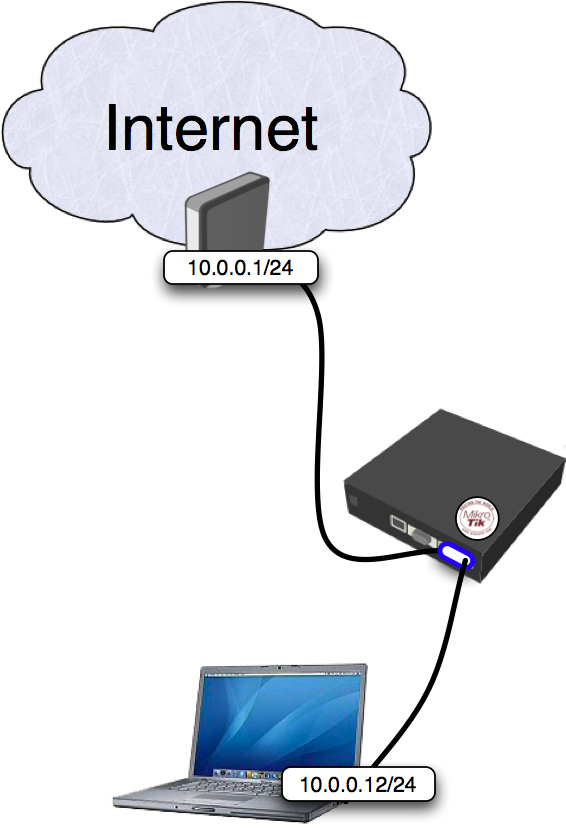
This example shows how to configure a transparent traffic shaper. The transparent traffic shaper is essentially a bridge that is able to differentiate and prioritize traffic that passes through it.Consider the following network layout :

We will configure one queue limiting the total throughput to the client and three sub-queues that limit HTTP, P2P and all other traffic separately.


Quick Start for Impatient

Configuration snippet from the MikroTik router: 

/ interface bridge add name="bridge1"
/ interface bridge port add interface=ether2 bridge=bridge1 add interface=ether3 bridge=bridge1
/ interface bridge settings set use-ip-firewall=yes

/ ip firewall mangle
add chain=prerouting protocol=tcp dst-port=80 action=mark-connection \ new-connection-mark=http_conn passthrough=yes
add chain=prerouting connection-mark=http_conn action=mark-packet \ new-packet-mark=http passthrough=no
add chain=prerouting p2p=all-p2p action=mark-connection \ new-connection-mark=p2p_conn passthrough=yes
add chain=prerouting connection-mark=p2p_conn action=mark-packet \ new-packet-mark=p2p passthrough=no
add chain=prerouting action=mark-connection new-connection-mark=other_conn \ passthrough=yes add chain=prerouting connection-mark=other_conn action=mark-packet \ new-packet-mark=other passthrough=no

/ queue simple
add name="main" target-addresses=10.0.0.12/32 max-limit=256000/512000
add name="http" parent=main packet-marks=http max-limit=240000/500000 priority=1
add name="p2p" parent=main packet-marks=p2p max-limit=64000/64000 priority=8
add name="other" parent=main packet-marks=other max-limit=128000/128000 priority=4


4.9.09

Dynamic DNS Update Script for ChangeIP.com

Sumber : wiki.mikrotik.com


The following script should be created when you wish to update your ChangeIP.com Dynamic DNS account. Once created you should schedule this to run once in a while. The :global variables should be edited to include your unique username and password, interface name, etc.
The script below is RouterOS 4.2 Tested! It should also continue to work under 3.x series RouterOS.
Below the plain text script is an export that can be used to paste directly into terminal window. That method is recommended as word wrapping is common. The second code window is also recommended because it includes a scheduler entry.
Note: A copy of the latest Dynamic DNS update script should be at ChangeIP.com. 


http://wiki.mikrotik.com/wiki/Dynamic_DNS_Update_Script_for_ChangeIP.com&

1.9.09

Downgrade USB 2.0 ke 1.0 (buat usb wifi - homemade)

Cara ke 1
Rubah Setting BIOS Komputer dari USB version 2.0 ke 1.1 atau ke 1.0
Jika di BIOS Komputer tidak ada fasilitas tersebut,

Gunakan cara ke 2:
Di Windows XP/2000/ME
Klik START - SETTINGS - CONTROL PANEL
Lalu pilih SYSTEM - HARDWARE - DEVICE MANAGER
Terus DISABLE "USB enhanced host controller"

5.5.09

Operating System for Router/Firewall

This list contains Linux distributions or Unix distributions specifically designed to be used as the operating system of a machine acting as a router and/or a firewall.

BrazilFW
BrazilFW is a Router/firewall distribution based on Coyote Linux
Cflinux
Cflinux is intended to be a small, embedded linux based system, mostly usable for firewall (Linux kernel 2.4 with iptables), router (ripd, ospfd, even bgpd from quagga), 802.11a/b/g access point (hostap and madwifi drivers), IPSEC gateway (openswan), PPPoE server (with radius authentication, kernel PPPoE), PPTP access servers
CiscoASA
Cisco ASA 8.x.x is Linux distribution used in Cisco ASA Security Appliances. An article in German, describing the contents of the package
ClarkConnect
Router/firewall distribution
Collax Business Server
A Router/firewall & web-, email- and database server distribution
Collax Security Gateway
A specialized Router/firewall/IDS/IPS server distribution
Coyote Linux
Router/firewall distribution
Devil-Linux
firewall/router/server distribution running from CD
DD-WRT
Embedded firewall distribution
eBox
Router/Firewall and NAS/PDC
Eisfair
small easy to install server
Endian Firewall
Unified Threat Management distribution (Router/Firewall, Gateway Anti-Spam & Anti-Virus for Web, FTP and Email, Hotspot functionality)
EnGarde Secure Linux
A Router/firewall & web-, email- and database server distribution
Fli4l
a single floppy ISDN, DSL and Ethernet-Router
floppyfw
floppyfw is a router with the advanced firewall-capabilities in Linux that fits on one single floppy disc.
FREESCO
a free replacement for proprietary routers supporting up to 10 network cards and up to 10 modems.
Gibraltar
Router/firewall distribution.
IPCop
Router/firewall distribution
IPFire
Router/firewall/homeserver distribution with webbased paketmanager
LEAF Project
a customizable embedded Linux network appliance used as an Internet gateway, router, firewall, and wireless access point.
Ideco Gateway
Advanced Router/Firewall distro
OpenWrt
Modular embedded distribution for ARM, MIPS, PPC and x86 devices.
M0n0wall
A Router/firewall distribution based on FreeBSD.
PfSense
A free, open source customized distribution of FreeBSD tailored for use as a firewall and router.
PyramidLinux
A wireless router distribution for x86 embedded systems.
redWall
Router/firewall distribution
Sentry Firewall
A firewall, server or intrusion detection system distribution
SME Server
A Router/firewall[citation needed] & web-, file-, email- and database server distribution based on CentOS
SmoothWall
Router/firewall distribution
The Linux Router Project
Router distribution (Defunct as of 2003)
Trustix
Router/firewall distribution with SSH and GCC included if desired.(Defunct as of jan 2009)
Untangle
GPLv2 Firewall & Router that runs 12 open source applications including Spam Blocker, Virus Blocker, Web Filter, OpenVPN & More.
Vyatta
Enterprise-class routing, security and traffic management with simple-to-use interfaces designed as a network operating system that runs on Intel/AMD as well in virtual environments.
Zeroshell
Web administrable router/firewall live CD with QoS features. It is also able to act as a Wi-Fi Access Point with advanced features such as the Multiple SSID and 802.1x RADIUS Authentication. Zeroshell supports VLAN trunking (802.1q), bridging and WAN load balancing and failover features.

9.4.09

surat terbuka buat komunitas "hacker" Indonesia

Kepada Seluruh Rekan-Rekan Komunitas Teknologi Informasi di Tanah Air,

Pemilu merupakan kegiatan akbar penyaluran aspirasi politik yang menentukan kemajuan bangsa Indonesia sehingga seluruh rakyat berkepentingan mendukung suksesnya pelaksanaan Pemilu 2009.

Dengan berbagai keterbatasan yang ada, rekan-rekan BPPT (sebagai Tim TI KPU) dan ID-SIRTII, bersama-sama dengan berbagai komunitas yang berhubungan dengan keamanan informasi, antara lain: Coder, Echo, Jasakom, Komunitas Keamanan Informasi (KKI), Virologi, dan komunitas lainnya berusaha meningkatkan keamanan TI Pemilu 2009 sesuai dengan kapasitas masing-masing.

Kami menghimbau kepada siapapun yang merasa sebagai bagian dari bangsa Indonesia dan merasa memiliki negara ini, terutama rekan-rekan yang bergabung dalam berbagai komunitas teknologi informasi untuk bersama-sama menyukseskan Pemilu 2009 dengan cara:

1. Tidak melakukan hal-hal yang berpotensi melanggar hukum, terutama UU ITE, terhadap sistem Pemilu dan infrastruktur yang digunakan.

2. Memberikan berbagai masukan atau informasi yang diterima dari sumber manapun yang berkaitan dengan keamanan TI Pemilu 2009 ke nomer Hotline 087883728787, Fax : 021-56957634 atau email ke

pemilu2009@echo.or.id
pemilu2009@coder.web.id
pemilu2009@jasakom.com
pemilu2009@securityfirst.or.id
pemilu2009@virologi.info

Terimakasih atas kesediaan rekan-rekan meneruskan himbauan ini kepada rekan-rekan lainnya.


Salam,

Coder, Echo, Jasakom, KKI, Virologi dan Komunitas-Komunitas TI Lainnya

7.4.09


Selamat datang di Portal Insan Mikrotik Banjarmasin, Kalimantan Selatan (ITIK Banjar)
. Media ini kami buat untuk menyatukan komunitas pengguna Mikrotik Router OS di Kalimantan Selatan agar dapat saling berbagi dan share knowledge seputar system ini. Kami harapkan kawan-kawan yang mengunjungi portal ini dapat mendaftarkan dirinya disini guna melakukan pendataan anggota untuk selanjutnya akan kita adakah kopi darat sebagai langkah berikutnya untuk membuat struktur organisasi yang harapan kami, dengan adanya struktur organisasi ini nantinya ITIK Banjar akan lebih solid dan tetap terjaga kesinambungannya.

Demikian, Semoga dapat diterima oleh kawan-kawan dengan baik, khususnya insan pengguna Mikrotik Router OS di Banjarmasin.

semoga dapat bermanfaat untuk kemajuan TI di Kalimantan Selatan

13.2.09

Why I think PayDotCom is the Best Affiliate Marketplace on the Net!

Hi

rahmad rizani here...

If you are familiar with Clickbank.com (R), or even if you are not but you want to make profits online, then you will want to check this out ASAP ...

While I like Clickbank, and they are a great marketplace... they are limited to many restrictions to sell products or earn affiliate commissions...

Well, there is a GREAT NEW SERVICE now...

It is a new FREE marketplace where you can sell any product you want.

Yours OWN product...

- OR - (the best part)
You can become an INSTANT Affiliate for ANY item in their HUGE marketplace.

It is called PayDotCom.com!

Did I mention it is 100% FREE to Join!

This site is going to KILL all other marketplaces and I by now, almost EVERY SINGLE SERIOUS online marketer has an account with PayDotCom.com

So get yours now and see how much they offer...


OH! - Also, they have their won affiliate program now that pays you COLD HARD cash just for sharing the site with people like I am doing with you...

They give you cool tools like BLOG WIDGETS, and they even have an advertising program to help you get traffic to your site.

If you want an ARMY of affiliates to sell your products for you, they also allow you to have Free placement in their marketplace!

Even better... If your product becomes one of the Top 25 products in its category in the marketplace (not that hard to do)...

...then you will get Free advertising on the Blog Widget which is syndicated on THOUSANDS of sites World Wide and get Millions of impressions per month.

So, what are you waiting for...

PayDotCom.com ROCKS!

Get your FREE account now...

http://paydotcom.net/?affiliate=539050


Thanks,

rahmad rizani

P.S. - Make sure to get your Account NOW while it is Free to join.

Installing OpenWrt with RedBoot

Once you have gained access to !RedBoot either by telnet or the serial console you can install !OpenWrt with the following method.

NOTE: If you changed RedBoot’s baud rate to something different than 9600bps, revert that change unless your terminal program does auto baud detection — OpenWrt logs to its serial console with 9600bps, so having the same baud rate in RedBoot is a good idea.

Note: instructions below also worked on FON2200

You have to download two files (right click and save as).

openwrt-atheros-vmlinux.lzma

openwrt-atheros-root.squashfs

Copy openwrt-atheros-vmlinux.lzma and openwrt-atheros-root.squashfs to /tftpboot/ and flash them like this:

^C
RedBoot> ip_address -h 192.168.5.2 -l 192.168.5.75/24
IP: 192.168.5.75/255.255.255.0, Gateway: 0.0.0.0
Default server: 192.168.5.2

RedBoot> load -r -b %{FREEMEMLO} openwrt-atheros-vmlinux.lzma
Using default protocol (TFTP)
Raw file loaded 0×80041000-0×800f0fff, assumed entry at 0×80041000
RedBoot> fis init

The values for the -e and -r switches in the ‘fis create’ RedBoot command below is the Kernel entry point. Do not change this value.

RedBoot> fis create -e 0×80041000 -r 0×80041000 vmlinux.bin.l7
An image named ‘vmlinux.bin.l7′ exists - continue (y/n)? y
… Erase from 0xa8730000-0xa87e0000: ………..
… Program from 0×80041000-0×800f1000 at 0xa8730000: ………..
… Erase from 0xa87e0000-0xa87f0000: .
… Program from 0×80ff0000-0×81000000 at 0xa87e0000: .

“fis free” will print the first and last free block

RedBoot> fis free
0xA80F0000 .. 0xA87E0000

Now do the math (last - first, cause you need the difference)

server:~# bc
obase=16
ibase=16
A87E0000 - A80F0000
6F0000

Replace 0xLENGTH with the value above (0×006F0000 in my case) and flash the the rootfs:

RedBoot> load -r -b %{FREEMEMLO} openwrt-atheros-root.squashfs
Using default protocol (TFTP)
|
Raw file loaded 0×80041000-0×80200fff, assumed entry at 0×80041000
RedBoot> fis create -l 0xLENGTH rootfs
An image named ‘rootfs’ exists - continue (y/n)? y
… Erase from 0xa8030000-0xa8730000: ………………………………………………………………………………………………….
… Program from 0×80041000-0×80741000 at 0xa8030000: ………………………………………………………………………………………………..
… Erase from 0xa87e0000-0xa87f0000: .
… Program from 0×80ff0000-0×81000000 at 0xa87e0000: .
RedBoot> reset

If everything is okay, then it will now look like this:

+PHY ID is 0022:5521
…
== Executing boot script in 1.000 seconds - enter ^C to abort
RedBoot> fis load -l vmlinux.bin.l7
Image loaded from 0×80041000-0×80290085
RedBoot> exec
Now booting linux kernel:
Base address 0×80030000 Entry 0×80041000
Cmdline :
Linux version 2.6.21.5 (ubuntu@ubuntu-laptop) (gcc version 4.1.2) #1 Sat Sep 29 11:04:17 CEST 2007
CPU revision is: 00019064
Determined physical RAM map:
memory: 01000000 @ 00000000 (usable)
Initrd not found or empty - disabling initrd
Built 1 zonelists. Total pages: 4064
Kernel command line: console=ttyS0,9600 rootfstype=squashfs,jffs2 init=/etc/preinit
Primary instruction cache 16kB, physically tagged, 4-way, linesize 16 bytes.
Primary data cache 16kB, 4-way, linesize 16 bytes.
Synthesized TLB refill handler (20 instructions).
Synthesized TLB load handler fastpath (32 instructions).
Synthesized TLB store handler fastpath (32 instructions).
Synthesized TLB modify handler fastpath (31 instructions).
PID hash table entries: 64 (order: 6, 256 bytes)
Using 92.000 MHz high precision timer.
Dentry cache hash table entries: 2048 (order: 1, 8192 bytes)
Inode-cache hash table entries: 1024 (order: 0, 4096 bytes)
Memory: 13504k/16384k available (1955k kernel code, 2880k reserved, 292k data, 116k init, 0k highmem)
Mount-cache hash table entries: 512
NET: Registered protocol family 16
Radio config found at offset 0xf8(0×1f
Time: MIPS clocksource has been installed.
NET: Registered protocol family 2
IP route cache hash table entries: 1024 (order: 0, 4096 bytes)
TCP established hash table entries: 512 (order: 0, 4096 bytes)
TCP bind hash table entries: 512 (order: -1, 2048 bytes)
TCP: Hash tables configured (established 512 bind 512)
TCP reno registered
squashfs: version 3.0 (2006/03/15) Phillip Lougher
Registering mini_fo version $Id$
JFFS2 version 2.2. (NAND) (C) 2001-2006 Red Hat, Inc.
io scheduler noop registered
io scheduler deadline registered (default)
Serial: 8250/16550 driver $Revision: 1.90 $ 1 ports, IRQ sharing disabled
serial8250: ttyS0 at MMIO 0xb1100003 (irq = 37) is a 16550A
eth0: Dropping NETIF_F_SG since no checksum feature.
eth0: Atheros AR231x: 00:18:84:14:39:94, irq 4
cmdlinepart partition parsing not available
Searching for RedBoot partition table in spiflash at offset 0×7d0000
Searching for RedBoot partition table in spiflash at offset 0×7e0000
5 RedBoot partitions found on MTD device spiflash
Creating 5 MTD partitions on “spiflash”:
0×00000000-0×00030000 : “RedBoot”
0×00030000-0×000f0000 : “vmlinux.bin.l7″
0×000f0000-0×007e0000 : “rootfs”
0×00200000-0×007e0000 : “rootfs_data”
0×007e0000-0×007ef000 : “FIS directory”
0×007ef000-0×007f0000 : “RedBoot config”
nf_conntrack version 0.5.0 (128 buckets, 1024 max)
ip_tables: (C) 2000-2006 Netfilter Core Team
TCP vegas registered
NET: Registered protocol family 1
NET: Registered protocol family 17
802.1Q VLAN Support v1.8 Ben Greear
All bugs added by David S. Miller
VFS: Mounted root (squashfs filesystem) readonly.
Freeing unused kernel memory: 116k freed
Warning: unable to open an initial console.
eth0: Configuring MAC for full duplex
Algorithmics/MIPS FPU Emulator v1.5
- preinit -
jffs2 not ready yet; using ramdisk
mini_fo: using base directory: /
mini_fo: using storage directory: /tmp/root
- init -
init started: BusyBox v1.4.2 (2007-09-26 19:44:01 CEST) multi-call binary
Please press Enter to activate this console. device eth0 entered promiscuous mode
br-lan: port 1(eth0) entering learning state
br-lan: topology change detected, propagating
br-lan: port 1(eth0) entering forwarding state
PPP generic driver version 2.4.2
wlan: 0.8.4.2 (svn r256
ath_hal: module license ‘Proprietary’ taints kernel.
ath_hal: 0.9.30.13 (AR5212, AR5312, RF2316, TX_DESC_SWAP)
ath_rate_minstrel: Minstrel automatic rate control algorithm 1.2 (svn r256
ath_rate_minstrel: look around rate set to 10%
ath_rate_minstrel: EWMA rolloff level set to 75%
ath_rate_minstrel: max segment size in the mrr set to 6000 us
wlan: mac acl policy registered
ath_ahb: 0.9.4.5 (svn r256
ath_pci: switching rfkill capability off
ath_pci: switching per-packet transmit power control off
wifi0: 11b rates: 1Mbps 2Mbps 5.5Mbps 11Mbps
wifi0: 11g rates: 1Mbps 2Mbps 5.5Mbps 11Mbps 6Mbps 9Mbps 12Mbps 18Mbps 24Mbps 36Mbps 48Mbps 54Mbps
wifi0: H/W encryption support: WEP AES AES_CCM TKIP
wifi0: mac 11.0 phy 4.8 radio 7.0
wifi0: Use hw queue 1 for WME_AC_BE traffic
wifi0: Use hw queue 0 for WME_AC_BK traffic
wifi0: Use hw queue 2 for WME_AC_VI traffic
wifi0: Use hw queue 3 for WME_AC_VO traffic
wifi0: Use hw queue 8 for CAB traffic
wifi0: Use hw queue 9 for beacons
wifi0: Atheros 2315 WiSoC: mem=0xb0000000, irq=3
jffs2_scan_eraseblock(): End of filesystem marker found at 0×0
jffs2_build_filesystem(): unlocking the mtd device… done.
jffs2_build_filesystem(): erasing all blocks after the end marker… done.
mini_fo: using base directory: /
mini_fo: using storage directory: /jffs
BusyBox v1.4.2 (2007-09-26 19:44:01 CEST) Built-in shell (ash)
Enter ‘help’ for a list of built-in commands.
_______ ________ __
| |.—–.—–.—–.| | | |.—-.| |_
| - || _ | -__| || | | || _|| _|
|_______|| __|_____|__|__||________||__| |____|
|__| W I R E L E S S F R E E D O M
KAMIKAZE (7.09) ———————————–
* 10 oz Vodka Shake well with ice and strain
* 10 oz Triple sec mixture into 10 shot glasses.
* 10 oz lime juice Salute!
—————————————————
root@OpenWrt:/#

6.9.08

8 Easy Firefox Tweaks for Super Fast Web Browsing

Fast loading web pages while surfing the Internet may have more to do with your web browser settings and preferences than your Internet connection speed.

Try these easy Firefox tweaks and you’ll see that you’re surfing the Internet from 3 to 30 times faster!


To get started, open your Firefox web browser. In the address/location bar type [about:config] and then press your Enter key. (NOTE: DON’T TYPE THE BRACKETS.)

Tweak #1:
In the Filter bar type [network.http.pipelining]. Then, double-click on this line under Preference Name in order to change the value from false to true.
Tweak #2:
In the Filter bar type [network.http.pipelining.maxrequests]. Then, double-click on this line under Preference Name and change the value from 4 to a higher number anywhere from 10 to 30. I set mine to 30.
Tweak #3:
In the Filter bar type [network.http.proxy.pipelining]. Then, double-click on this line under Preference Name in order to change the value from false to true.
Tweak #4:
In the Filter bar type [network.dns.disableIPv6]. Then, double-click on this line under Preference Name in order to change the value from false to true.
Tweak #5:
In the Filter bar type [plugin.expose_full_path]. Then, double-click on this line under Preference Name in order to change the value from false to true.
Tweak #6:
In the Filter bar type [network.protocol-handler.external.ms-help]. Now, you are going to create a new Preference Name with an Integer Value. To do this, right-click on this line under Preference Name and select New, then Integer.
In the New Integer value box type in [nglayout.initialpaint.delay] and click OK. Then in the Enter Integer value box type [0] (that’s a zero) and click OK.
Tweak #7:
In the Filter bar again type [network.protocol-handler.external.ms-help]. Now, you are going to create another new Preference Name with an Integer Value. To do this, right-click on this line under Preference Name and select New, then Integer. In the New Integer value box type in [content.notify.backoffcount] and click OK. Then in the Enter Integer value box type [5] and click OK.
Tweak #8:
In the Filter bar again type [network.protocol-handler.external.ms-help]. Now, you are going to create another new Preference Name with an Integer Value. To do this, right-click on this line under Preference Name and select New, then Integer. In the New Integer value box type in [ui.submenuDelay] and click OK. Then in the Enter Integer value box type [0] (that’s a zero) and click OK.

Now, close your web browser and restart it. You’ll see how much faster web pages are loading. I sure did.

Let me know if these tweaks increase your Internet browsing speed. Know of any other tweaks or tricks? Let me know and I’ll add them.


5.9.08

Modem CDMA Venus VT-10 di Ubuntu 6.06 (kutipan)

Modem Venus VT-10 dengan kartu FREN saya dikenali dengan baik oleh Ubuntu Dapper. Berikut ini sedikit langkah-langkah supaya saya gak lupa.

Colokin modem USB, tentunya dengan kartu CDMA didalamnya (saya pake FREN). Lihat dmesg jika ada pesan seperti berikut berarti modem usb sudah dikenali.

[17179589.504000] cdc_acm 1-1:1.0: ttyACM0: USB ACM device
[17179589.508000] usbcore: registered new driver cdc_acm
[17179589.508000] drivers/usb/class/cdc-acm.c: v0.23:USB Abstract Control Model driver for USB modems and ISDN adapters

Konfigurasi /etc/wvdial.conf sebagai berikut:

[Dialer FREN]
Init1 = ATZ
Init2 = ATQ0 V1 E1 S0=0 &C1 &D2 +FCLASS=0
Modem Type = USB Modem
Baud = 230400
New PPPD = yes
Modem = /dev/ttyACM0
ISDN = 0
Phone = #777
Password = m8
Username = m8
Auto DNS = 1
Stupid Mode = 1
Auto Reconnect = on

Jalankan wvdial.
$ sudo wvdial FREN

Sengaja wvdial tidak saya jalankan di background supaya mudah dalam mengidentfikasi pesan error. Jika tidak terdapat masalah akan terlihat message berikut di terminal

--> WvDial: Internet dialer version 1.55
--> Cannot get information for serial port.
--> Initializing modem.
--> Sending: ATZ
ATZ
OK
--> Sending: ATQ0 V1 E1 S0=0 &C1 &D2 +FCLASS=0
ATQ0 V1 E1 S0=0 &C1 &D2 +FCLASS=0
OK
--> Modem initialized.
--> Sending: ATDT#777
--> Waiting for carrier.
ATDT#777
CONNECT
--> Carrier detected. Starting PPP immediately.
--> Starting pppd at Sat Apr 21 09:34:43 2007
--> Pid of pppd: 5638
--> Using interface ppp0
--> pppd: ??[05][08]H?[05][08]
--> local IP address 10.128.19.150
--> pppd: ??[05][08]H?[05][08]
--> remote IP address 10.21.9.1
--> pppd: ??[05][08]H?[05][08]
--> primary DNS address 10.21.4.77
--> pppd: ??[05][08]H?[05][08]
--> secondary DNS address 10.21.7.7
--> pppd: ??[05][08]H?[05][08]

Untuk memutus koneksi tinggal tekan Ctrl+C di terminal tersebut.

Jika sebelumnya sudah ada koneksi ethernet yang berjalan, kemungkinan default gateway tidak melalui ppp0. Untuk itu harus diubah default gateway ke ppp0.

$ sudo route del default
$ sudo route add default gw dev ppp0

Untuk monitoring bandwidth di Linux, bisa menggunakan KtrafficAnalyzer. Karena tidak menemukan paket untuk Dapper, saya pakai alien untuk menginstall paket rpm KtrafficAnalyzer.

Selain itu bisa juga menggunakan vnstat. Untuk cara instalasi silahkan baca disini . Karena saya hanya akan memonitor modem CDMA, maka vnstat saya jalankan agar memonitor interface ppp0
$ sudo vnstat -u -i ppp0

Oh iya, tips untuk menghemat quota bandwidth juga berlaku di Linux. Enaknya pake Linux, gak usah khawatir tiba-tiba ada download/upload misterius yang ngabisin quota. Tentu saja entri crontab juga harus diperiksa ^^

Demikianlah, semoga bermanfaat ^^.
Fonera Flash oswave/open wrt

  1. mount a serial adapter to the fonera device(the serial adapter documentation can be found at http://wiki.openwrt.org/OpenWrtDocs/Hardware/Fon/Fonera)
  2. set your terminal client to 9600-8-N-1
  3. enter the RedBoot console by pressing CTRL+C
  4. copy linux.bin to your tftp server directory
  5. configure the RedBoot bootloader IP and TFTP server settings using ip_address -l [local ip address] -h [remote server address]
  6. flash the unit by entering the following commands ;
RedBoot> fis init
About to initialize [format] FLASH image system - continue (y/n)? y
*** Initialize FLASH Image System
... Erase from 0xa83e0000-0xa83f0000: .
... Program from 0x80ff0000-0x81000000 at 0xa83e0000: .

load -r -v -b 0x80041000 linux.bin
Using default protocol (TFTP)
Raw file loaded 0x80041000-0x802e3fff, assumed entry at 0x80041000
RedBoot> fis create linux
... Erase from 0xa8030000-0xa82f0000: ............................................
... Program from 0x80041000-0x80301000 at 0xa8030000: ............................................
... Erase from 0xa83e0000-0xa83f0000: .
... Program from 0x80ff0000-0x81000000 at 0xa83e0000: .

fconfig
enter the bootscript:
fis load -l linux
exec

save the config and do

reset

PCQ (Per Connection Queue) -- Part I

PCQ (Per Connection Queue) adalah jenis queue yang dapat digunakan untuk membagi atau membatasi traffic untuk multi-users secara dinamis, dengan sedikit administrasi.

Pembagian Bandwidth Sama Rata Untuk Multi Users
Gunakan queue jenis PCQ bila kita ingin membagi bandwidth secara rata (dan mengatur max-limit) untuk beberapa user. Kita akan memberikan contoh untuk pembagian limit bandwidth download sebesar 64 kbps dan upload sebesar 32 kbps.

Ada dua cara untuk melakukan ini :
  1. Menggunakan mangle dan queue tree
  2. Menggunakan Simple Queue
Dengan Mangle dan Queue Tree
1. Mark paket dengan mark-packet all :
Code:
/ip firewall mangle add chain=prerouting action=mark-packet new-packet-mark=all passthrough=no
2. Tambahkan 2 PCQ Type, satu untuk download dan satunya lagi untuk upload. Dst-Address adalah pengklasifikasian untuk traffic Download, sedang Src-Address adalah pengklasifikasian untuk traffic Upload :
Code:
/queue type add name=”PCQ_download” kind=pcq pcq-rate=64000 pcq-classifier=dst-address
/queue type add name=”PCQ_upload” kind=pcq pcq-rate=32000 pcq-classifier=src-address
3. Akhirnya, 2 buah rule queue ditambahkan, untuk download dan upload :
Code:
/queue tree add parent=global-in queue=PCQ_download packet-mark=all
/queue tree add parent=global-out queue=PCQ_upload packet-mark=all

Dengan Simple Queue
Jika anda tidak suka menggunakan mangle dan queue tree, anda dapat menggunakan satu rule queue seperti dibawah ini :
Code:
/queue simple add queue=PCQ_upload/PCQ_download target-addresses=192.168.0.0/24


Sekedar tambahan buat tulisan diatas
First of all kan marking packet yang buat up dulu nih :
/ip firewall mangle add chain=prerouting action=mark-packet new-packet-mark=up passthrough=no
terus buat marking yang download-an kita pake kaya gini :
/ip firewall mange add chain=forward action=mark-connection new-mark-connection=down-conn passthrought=yes
/ip firewall mangle add chain=forward in-interface=Public mark-connection=down-conn action=mark-packet new-packet-mark=down passthrough=no
jangan lupa chain di set forward, dan passthrought di set no untuk connection-mark dan di set yes untuk packet-mark
setelah itu baru deh kita buat queque typenya :
/queue type add name=”PCQ_download” kind=pcq pcq-rate=64000 pcq-classifier=dst-address
/queue type add name=”PCQ_upload” kind=pcq pcq-rate=32000 pcq-classifier=src-address
ini kalo kita ingin membatasi up 32k dan down 64k, kalo kita pengen dia otomatis kaya yang bro ALOE tanyain kita bisa masukin ajah pcq-rate=0 jadi nantinya dia akan langsung menyesuaikan bandwidth yang ada dan pengguna yang ada di jaringan Local
selanjutnya tinggal bikin deh wuewue tree nya :
/queue tree add name=upload parent=global-in
/queue tree add name=download parent=Local
untuk upload kita menggunakan parent global-in karena kita ingin membatasi semua yang masuk menuju router, sedangkan untuk download kita menggunakan parent Local, karena inilah interface yang menuju ke jaringan lokal kita
selanjutnya tinggal bikin ajah anakan dari tree induk yang sudah kita buat diatas:
/queue tree add name=client-upload parent=upload queue=PCQ_upload packet-mark=up
/queue tree add name=”download” parent=Local queue=PCQ_download packet-mark=down
Nah sekarang setiap client kita akan mendapatkan bw 32k/64k dan kalau kita menggunakan 0 pada saat menset queue type bw akan otomatis terbagi


Proxy Server , Squid 2.6. Ubuntu

Now, I want to share my experience to install squid server on Ubuntu as transparent proxy.
One important thing you need is install Ubuntu Server edition, Just install basic package than configure the server to connected to internet properly. If needed, set the /etc/apt/sources.list to link to local repository server which near with your location for new version of package or just installed from your CD/DVD installer. For this tutorial, I’m using squid 2.6. Let’s go to run.


me@simplyeko:~$ sudo apt-get install squid

After all finished, edit the file configuration. Use your favorite editor. For this tutorial, I’m using “vi” as my favourite editor

me@simplyeko:~$ sudo vi /etc/squid/squid.conf

Find this in squid.conf and change it

visible_hostname proxy.simplyeko.com
cache_mgr admin@simplyeko.com
http_port 3128 transparent
always_direct allow all


That’s all you need to change on squid.conf, but if you want more configuration file for squid.conf you can use this setting in here as comparison. The keyword for transparent proxy configuration on squid.conf is http_port 3128 transparent.

Now create the cache directory by typing

me@simplyeko:~$ sudo squid -z

Now you can run the squid

me@simplyeko:~$ sudo /etc/init.d/squid start

Transparent proxy already set. Transparent proxy means that we don’t have to enter any proxy address on browser. If you browse a website, you are going to port 80. But with this tutorial, we’re forwarding any connection that’s going to port 80 to our squid server automatically. So let’s start setting this.

me@simplyeko:~$ sudo echo 1 > /proc/sys/net/ipv4/ip_forward

This method is to enabling ip forwarding

Put that script in your startup scripts.

Now you have to put masquerading method so you can forward the connection

me@simplyeko:~$ sudo apt-get install ipmasq

The last..

me@simplyeko:~$ sudo iptables -A PREROUTING -t nat -p tcp –dport 80 -j REDIRECT –to-port 3128

This command is for forward any request on port 80, will be forwarded to port 3128 (our squid port)

Now you can run transparent squid proxy

me@simplyeko:~$ sudo /etc/init.d/squid start

Congratulations….!!! You have Transparent Proxy on your server and ready for production.

zte c300 trunk mode

  gpon   profile tcont PPPOE type 4 maximum 9900000   profile tcont 100M type 4 maximum 100000   profile tcont 50M-TRUNK type 4 maximum 5000...